
Klyp Session on your tablet
Control your set from an iPad or Android tablet.
↓ Browse results esc Close
Klyp Session · In development
Launch clips, mix tracks and play your Live instruments from an iPad or Android tablet. Edit your patterns and customise your controls for the studio and the stage.
Move between clips, mixing and device controls. Bring the parameters you use together into Macros or a custom Surface.
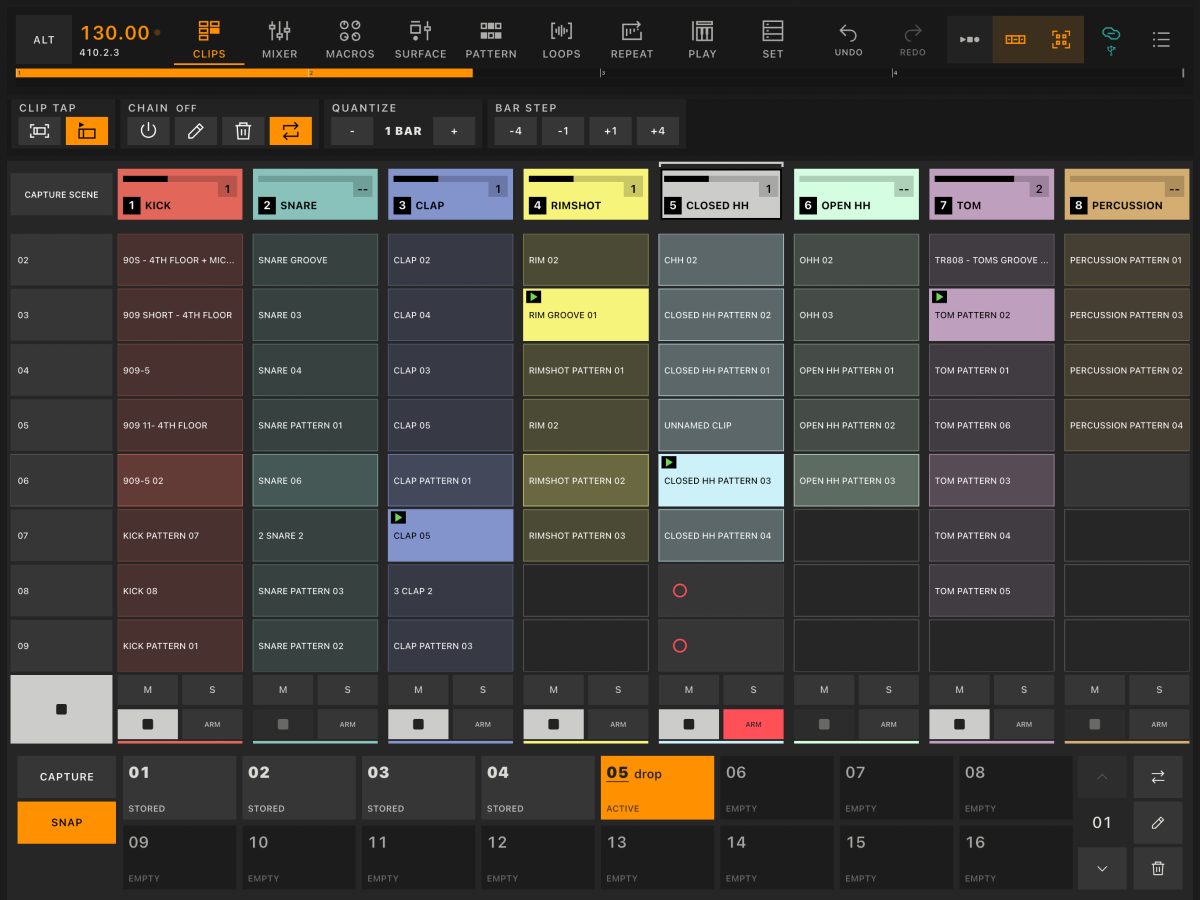
Clips
Launch clips and scenes from your tablet. See what’s playing across your Live Set and choose what comes next, in the studio or on stage.
Explore Clips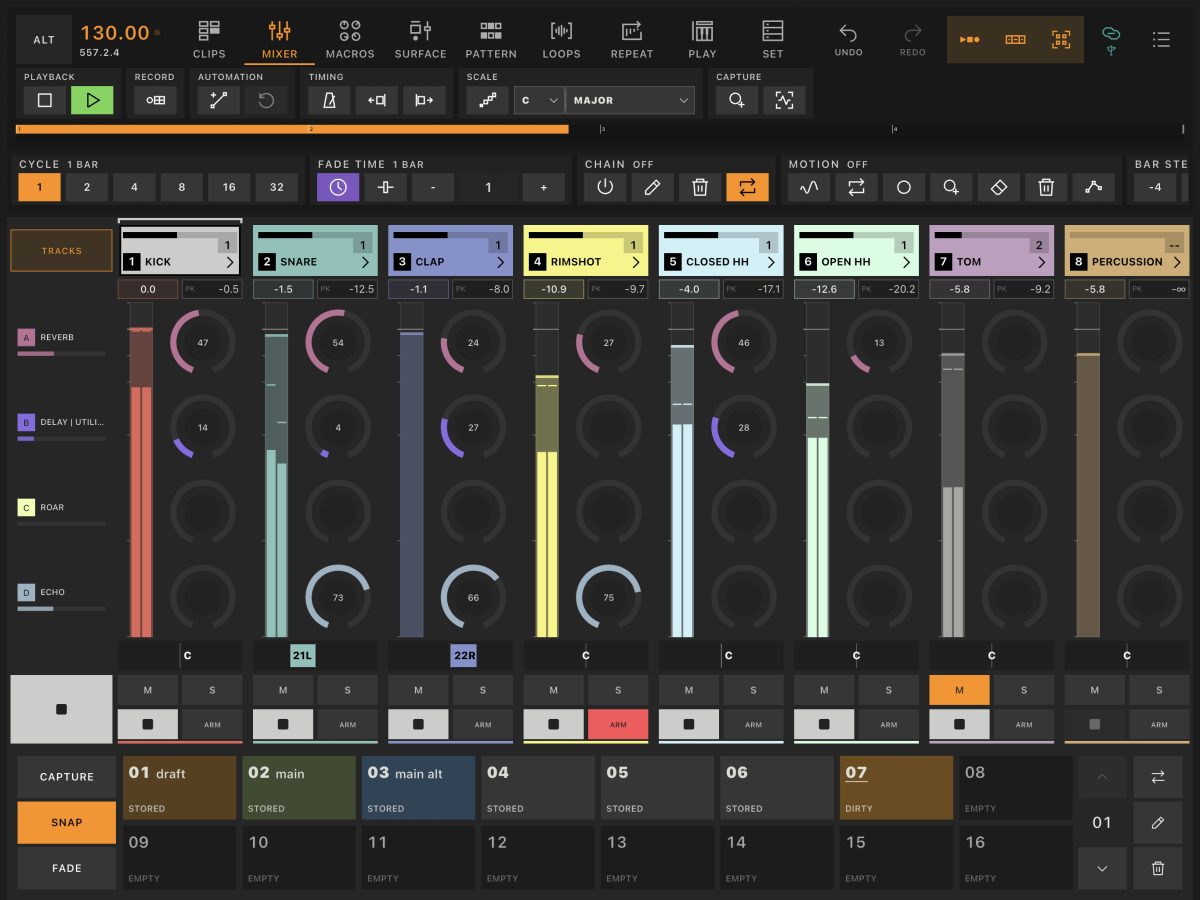
Mixer
Balance tracks, adjust pan and send audio to your return effects. A dedicated touch mixer keeps channel controls, return tracks and the master output together.
Explore Mixer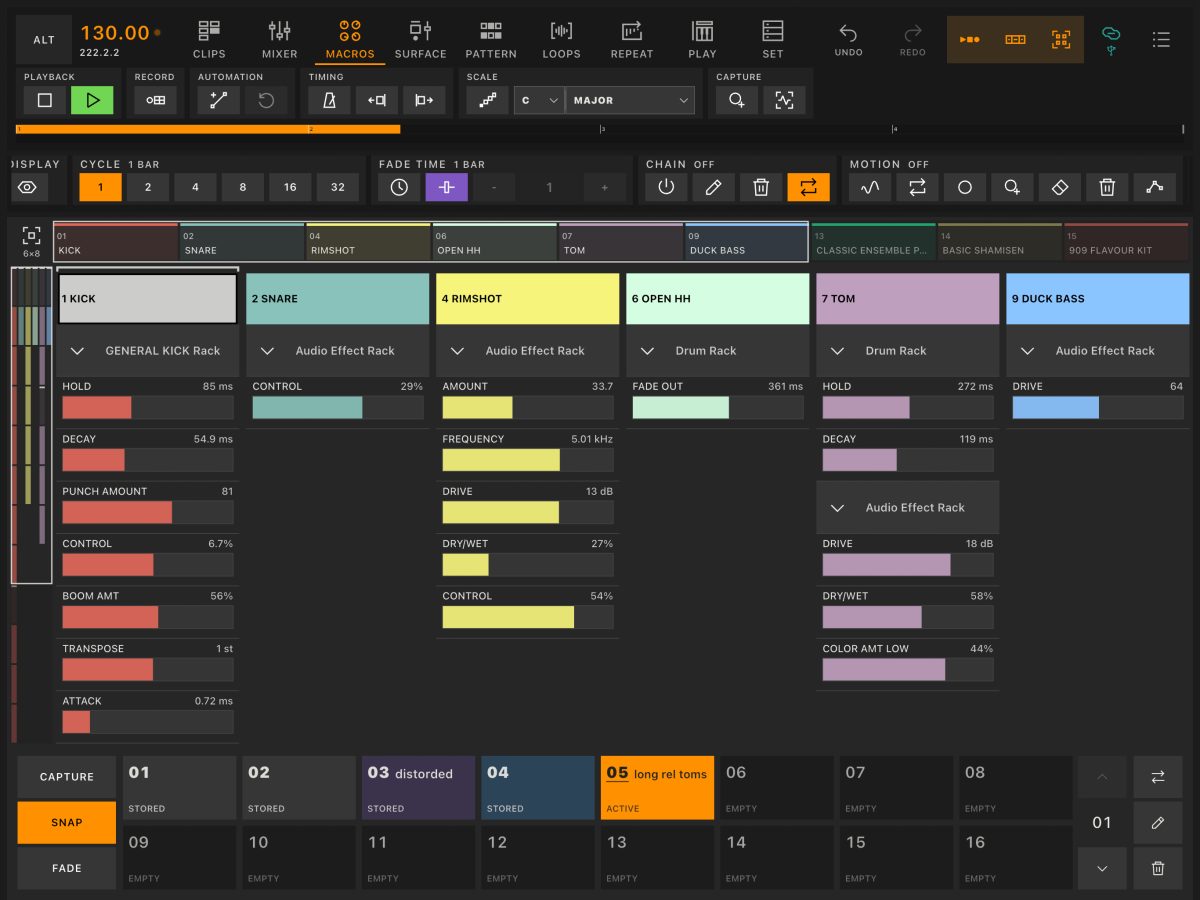
Macros
Bring the rack macros from your Live instruments and effects into one view, across multiple tracks. Keep the controls you use together close to hand.
Explore Macros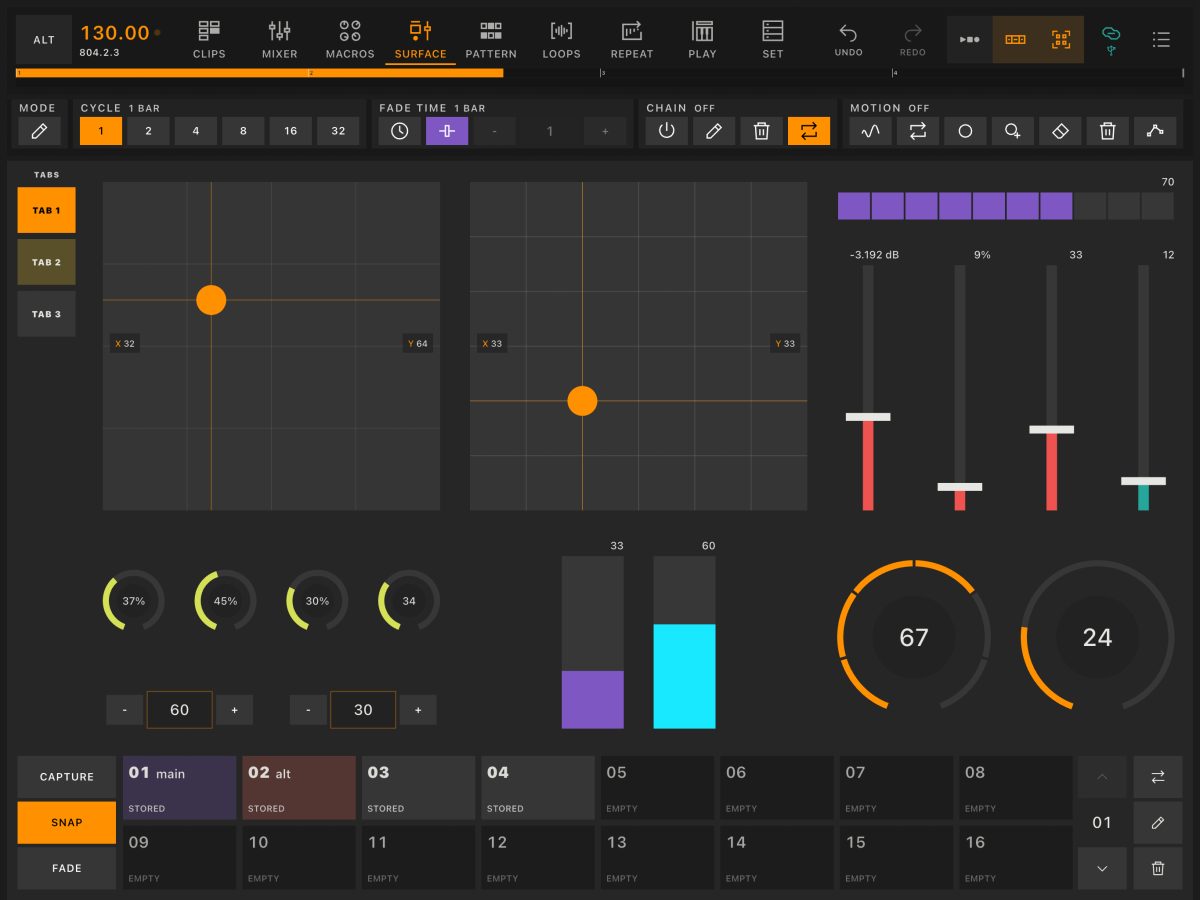
Surface
Choose your controls, arrange them into a layout and connect them to Live parameters or MIDI destinations. Build a surface around the instruments and effects you want to play.
Explore Surface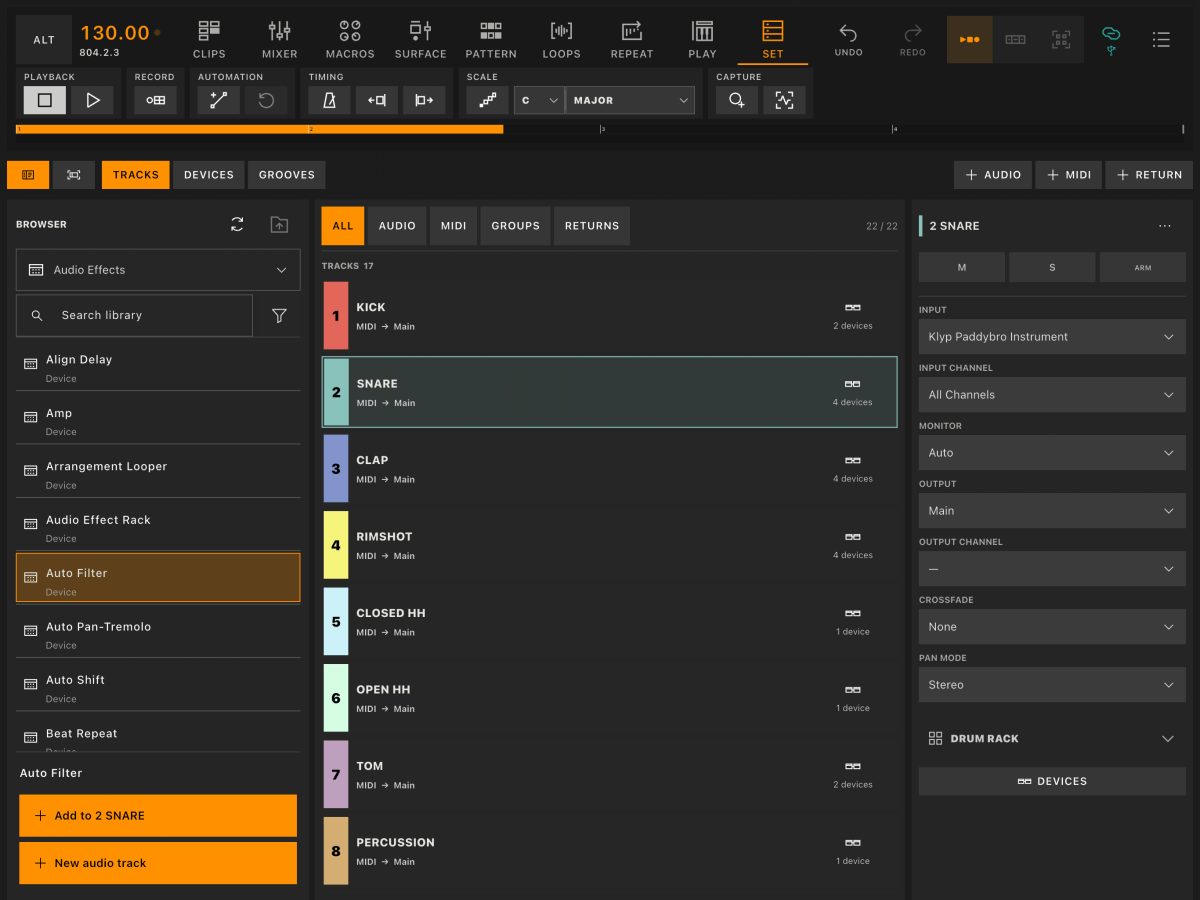
Set
Explore your Live Set from the tablet, from tracks and routing to device chains and individual parameters. Browse instruments and effects as you build or adjust your setup.
Explore SetChoose a layout and touch response for your instruments. Play chords, repeat notes or reshape the audio and loops already running in your set.
Play
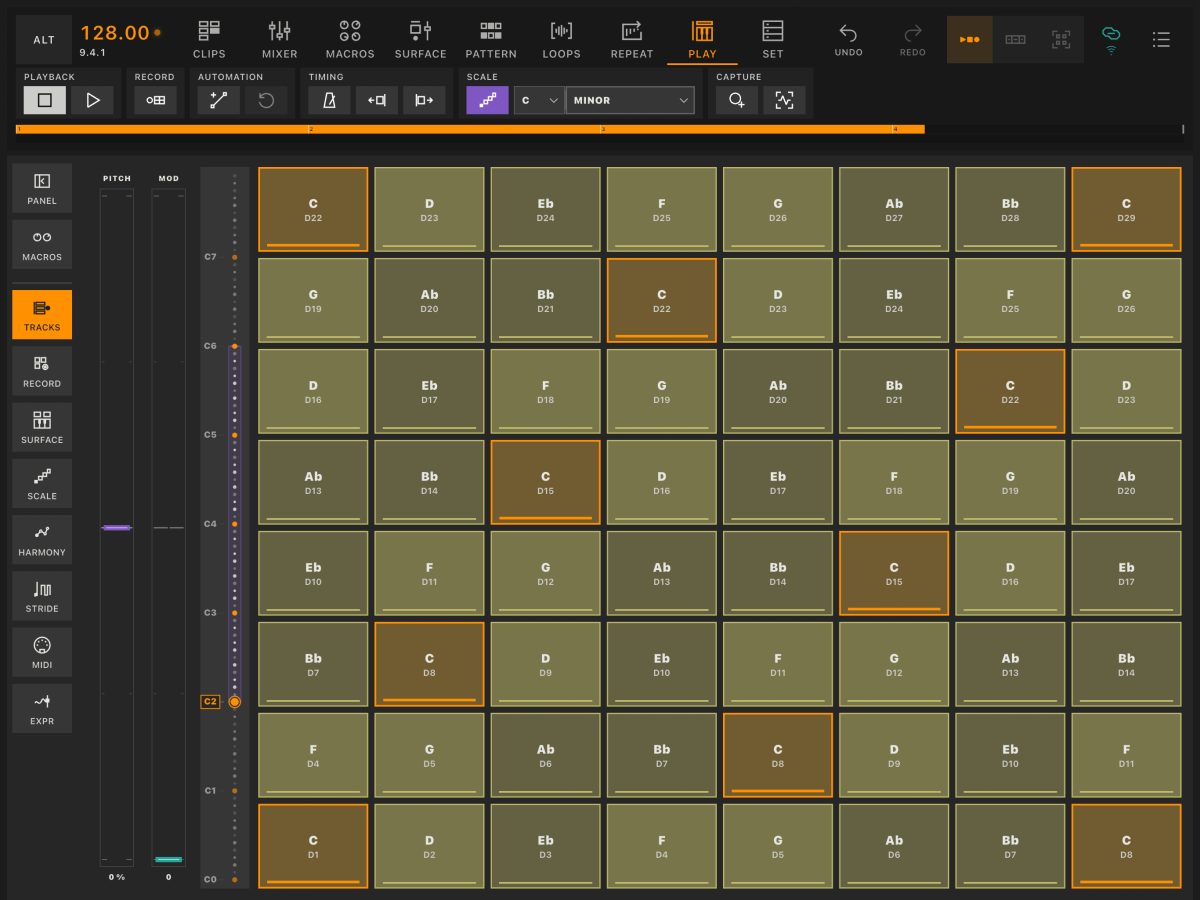
A playing surface for the instruments in your Live Set. Choose keys or pads, customise the touch response and keep scales, chords and sound controls close as you play.
Explore Play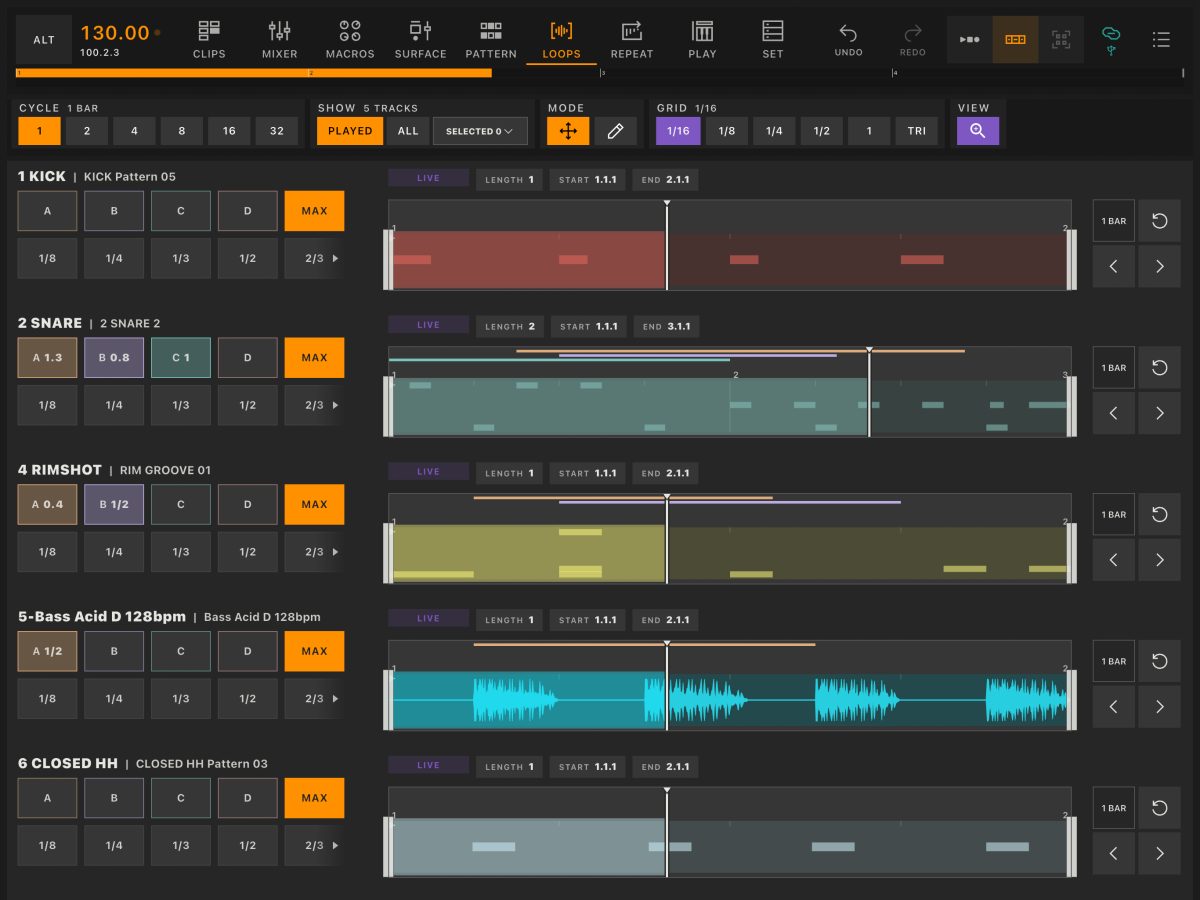
Loops
Move and resize clip loops across your tracks while the set plays. Repeat a shorter section, shift to another part of a clip or recall a loop you have prepared.
Explore Loops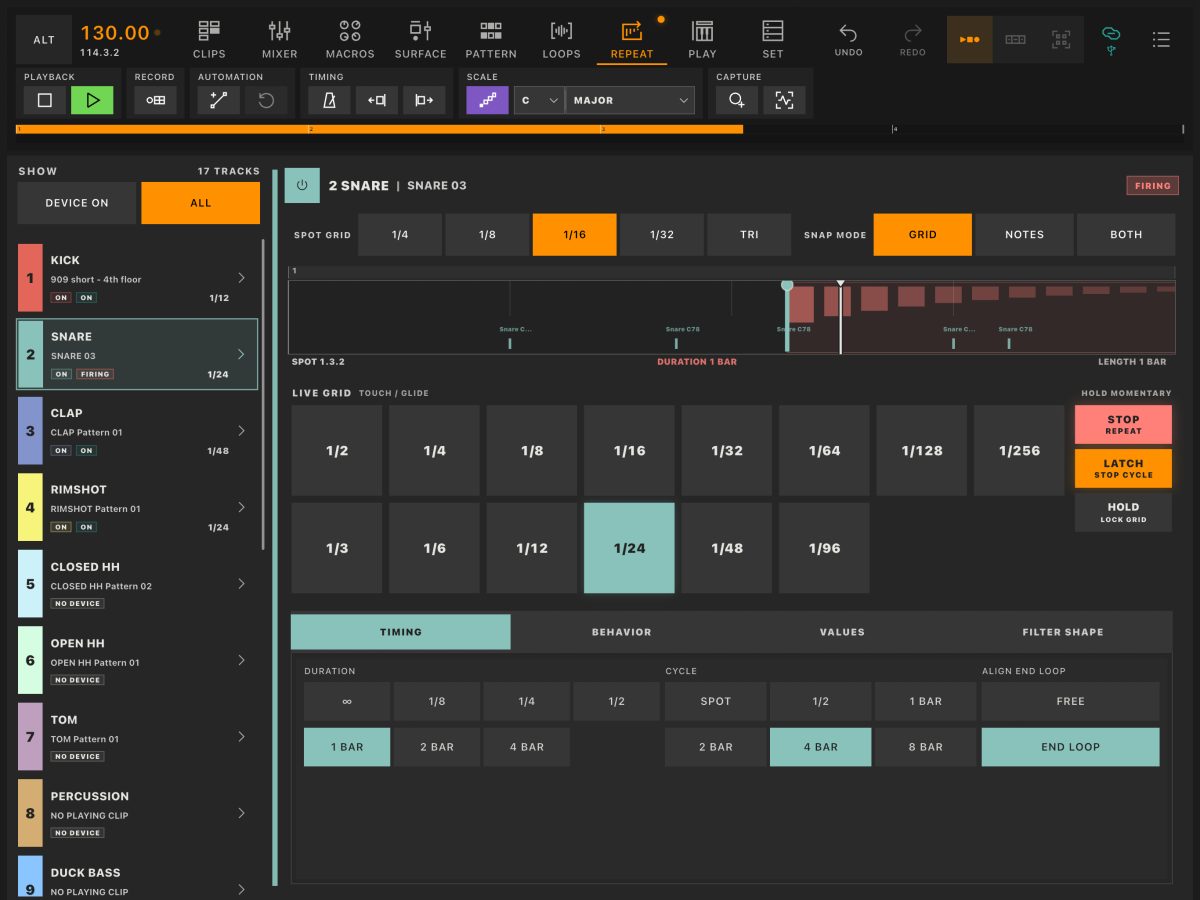
Repeat
Turn Ableton Live’s Beat Repeat into a hands-on performance device. Play repetitions by touch or program them into the rhythm of your set, with an independent repeat on each track.
Explore Repeat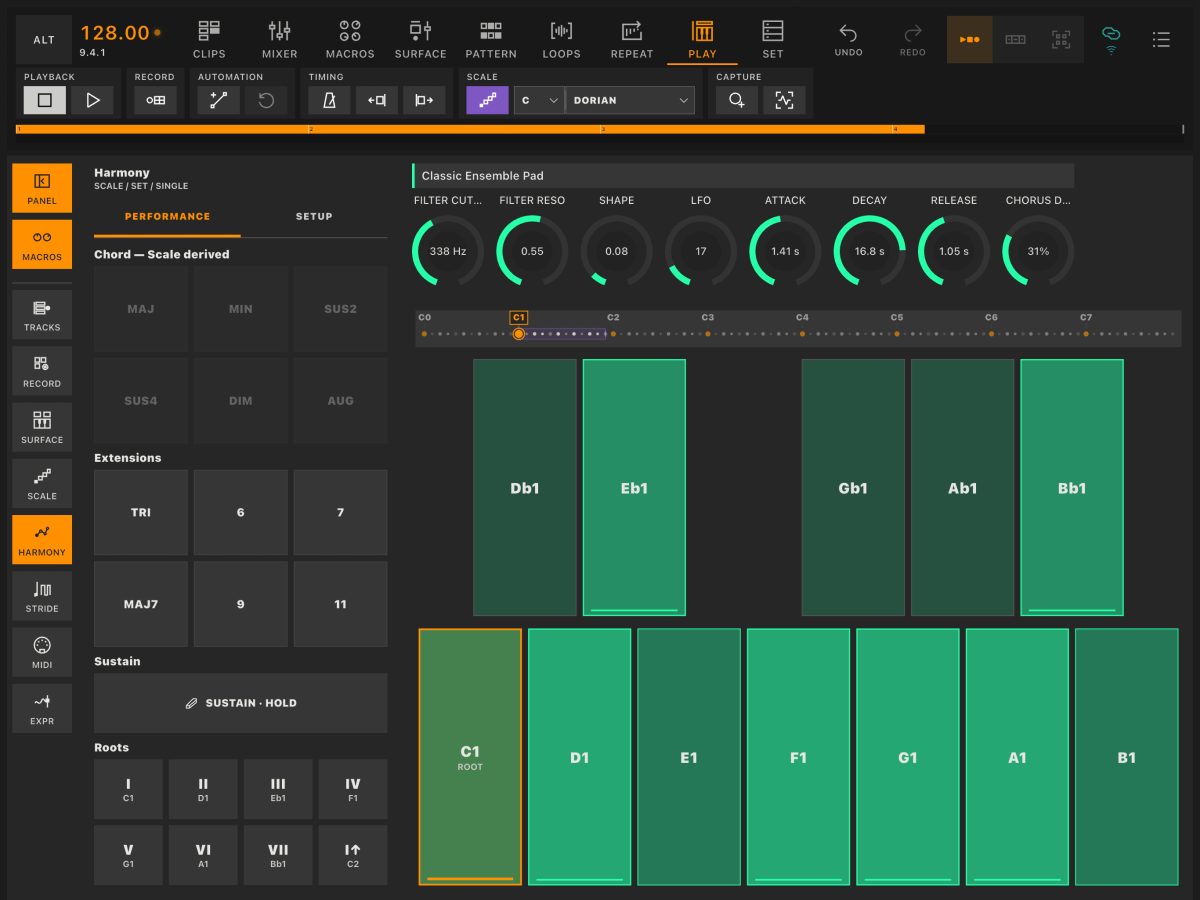
Harmony
Play chords from a root note. Follow your scale or choose a chord shape, then adjust extensions and voicing from the panel beside your keys or pads.
Explore Harmony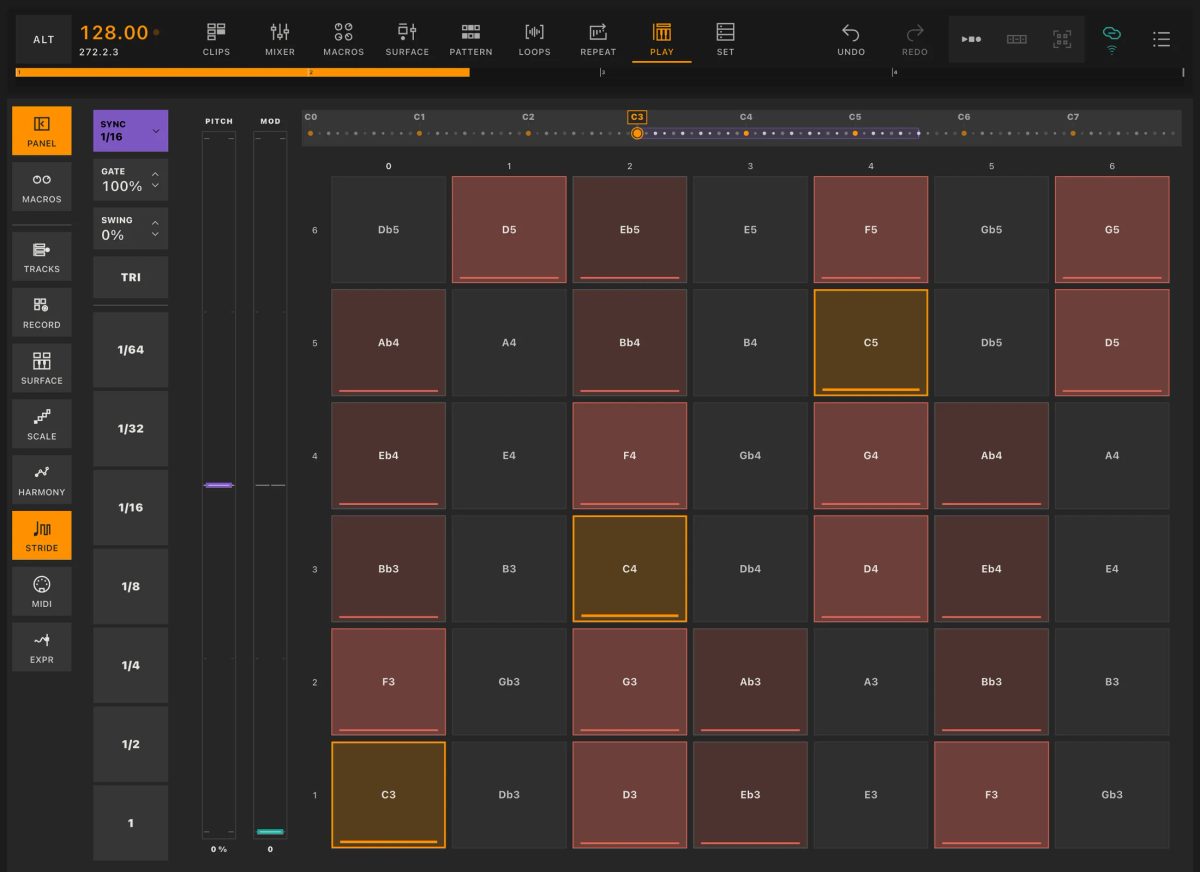
STRIDE
Turn held notes into rhythmic repetitions. Change the rate, gate and swing in Play, or draw repeated notes directly into a MIDI clip with STRIDE in Edit Clip.
Explore STRIDEFollow MIDI notes and audio across your tracks. Open a clip to edit its contents, timing and parameter envelopes.
Pattern
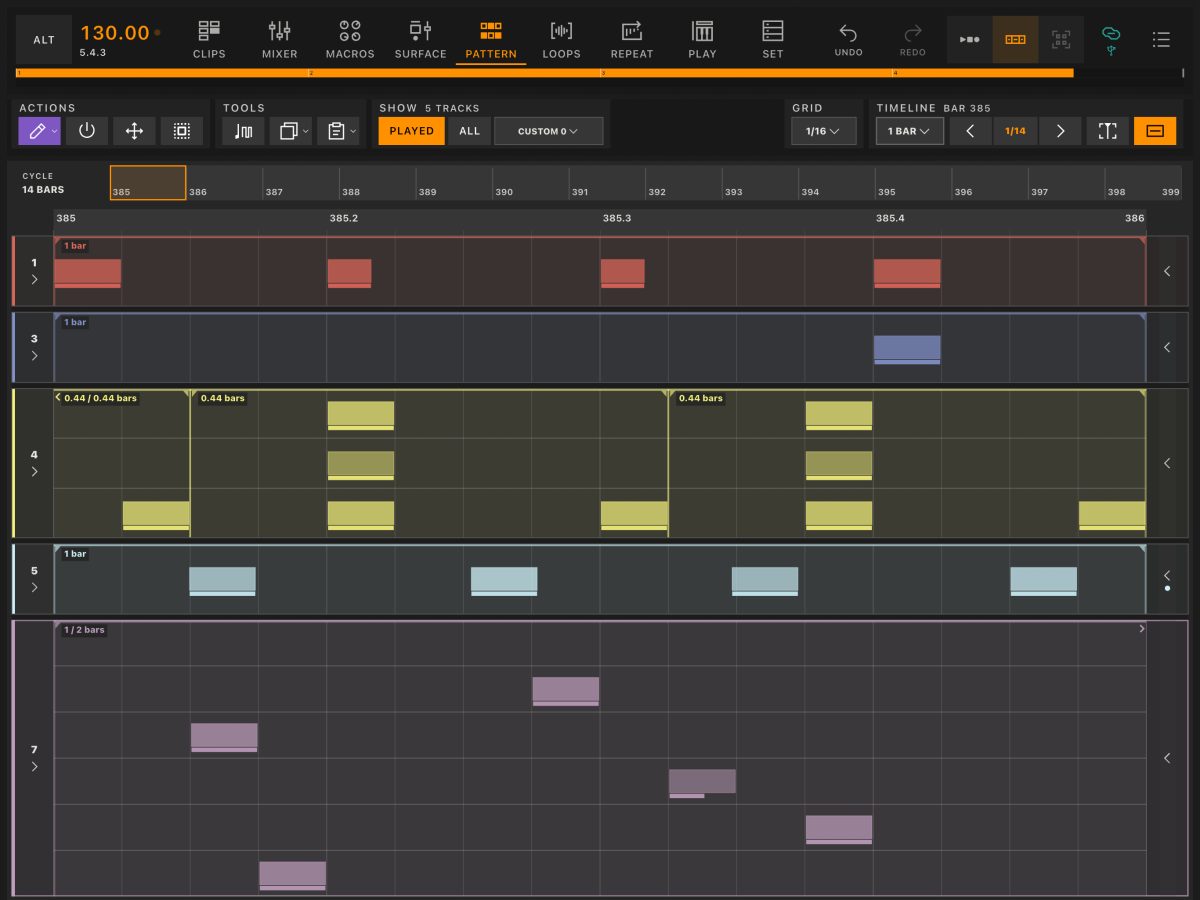
Follow MIDI notes and audio waveforms across several tracks in one view. Play parts, shape dynamics and draw rhythms in context, then open a clip when you want to work in detail.
Explore Pattern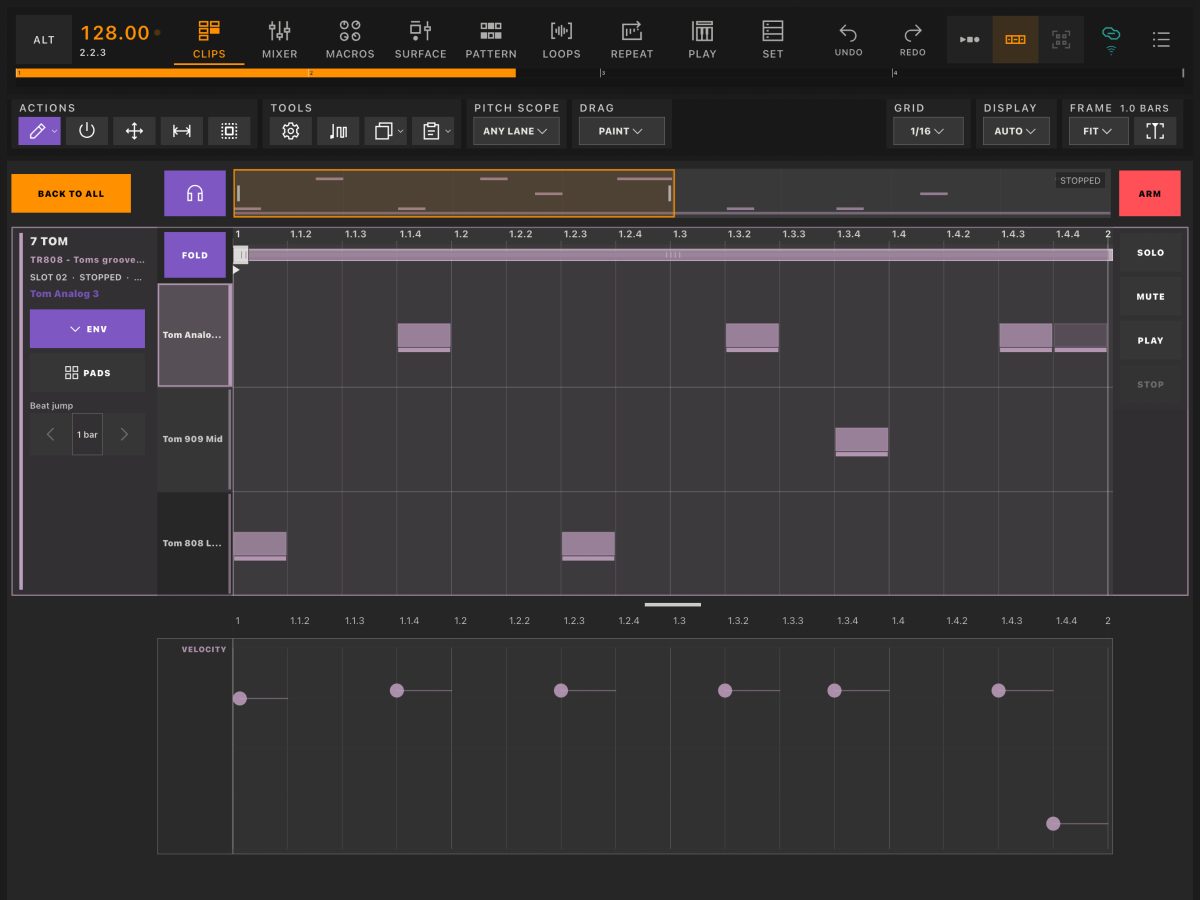
Edit Clip
Edit your Live clips from the tablet. Create and transform MIDI patterns, refine individual notes and shape envelopes. For audio clips, adjust timing, pitch and gain.
Explore Edit ClipPrepare variations of your set: clip combinations, mix settings and control movements. Save them for recall, transitions and reuse in other projects.
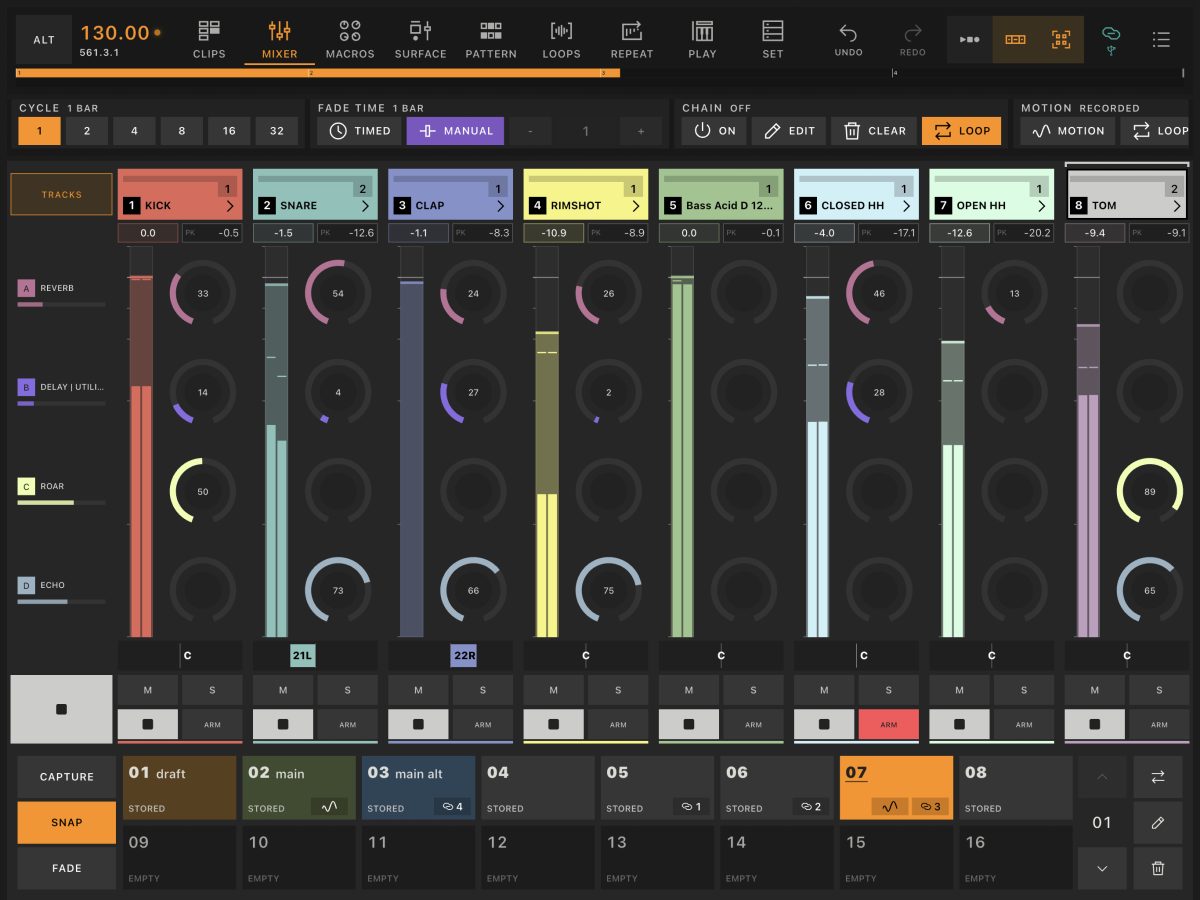
Snapshots
Capture clip combinations, mixer settings, rack macros and Surface control values. Recall a saved state, or use Fade to move between continuous parameter values over time.
Explore Snapshots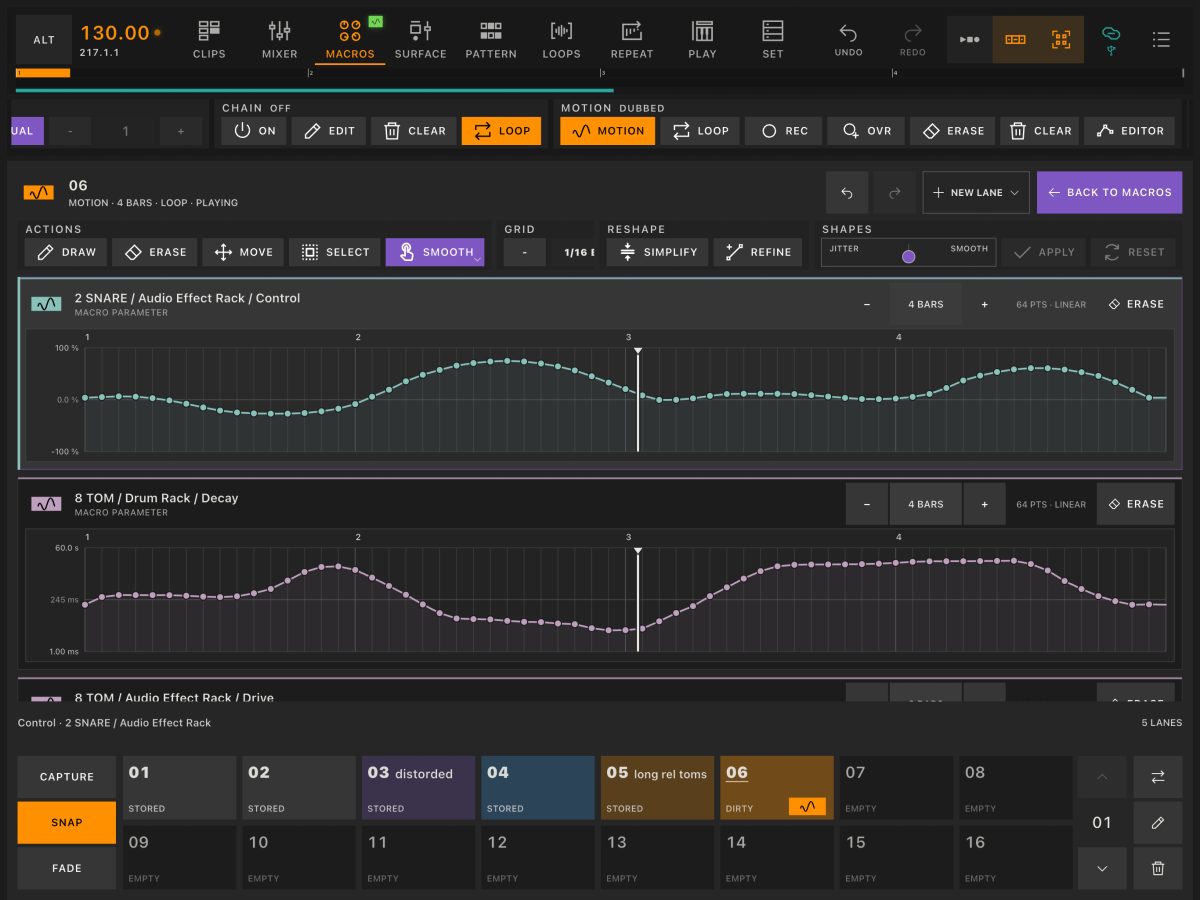
Motion
Record movements in Mixer, Macros and Surface, or draw automation directly in the editor.
Explore Motion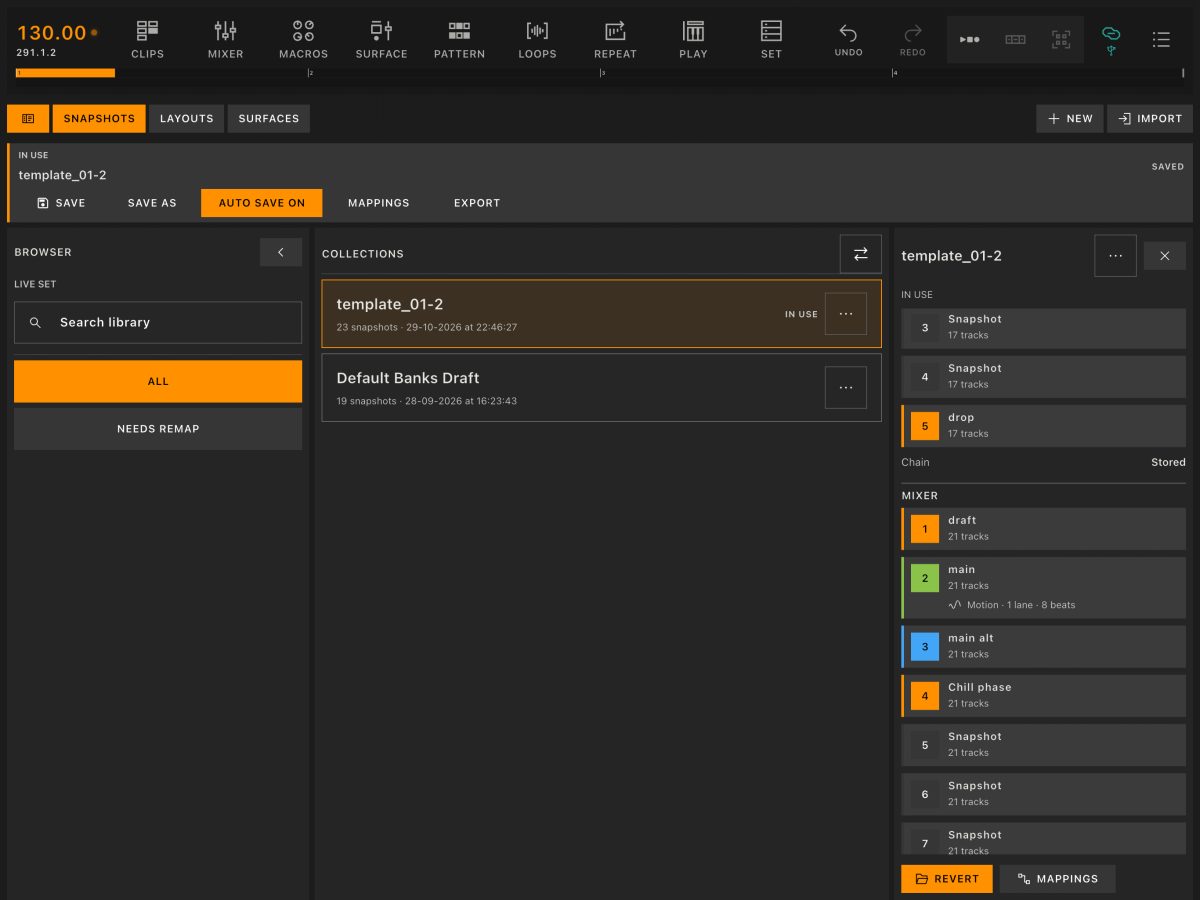
Banks
Keep snapshot collections, page layouts and custom Surfaces in one library. Save the setups that work for you, recall them when you need them and reuse them in another project.
Explore BanksYour setup
Control your set from an iPad or Android tablet.
Keep your instruments, effects and music in Live.
The desktop app connects Session to Ableton Live.
Beta compatibility is checked against your tablet, computer and Live version when you apply. Installation instructions accompany the available test builds.
Klyp Session · Beta
Apply to test Session with your own Live Set.
Apply for the Beta